
Vectorize your data effortlessly with 4D Embedding Studio

November 13, 2026
8 min read

Embeddings open the door to many AI use cases in your 4D applications: semantic search, recommendations, content matching, and document classification.
But creating an embedding involves more than generating a vector. As your data changes, its vector representations must be updated too. You need to detect changes, invalidate the affected vectors, recalculate them, and handle potential errors or limitations of AI services.
Starting with 4D 21 R5, 4D Embedding Studio saves you from building all this infrastructure. An interface lets you configure your embeddings, while the scheduler manages their lifecycle, from invalidation to recalculation. This lets you focus on what matters: using embeddings to bring AI features to your applications.
In this HDI, recalculations are triggered manually so you can observe each step and get results immediately. The scheduler, which automates this process in production, is explained later in this article.
An embedding is a vector representation of content. It transforms text or other information into a sequence of numbers that an AI model can compare. As a result, content with similar meanings produces similar vectors, even when it does not use exactly the same words.
With 4D Embedding Studio, you can configure embedding generation entirely through the interface:
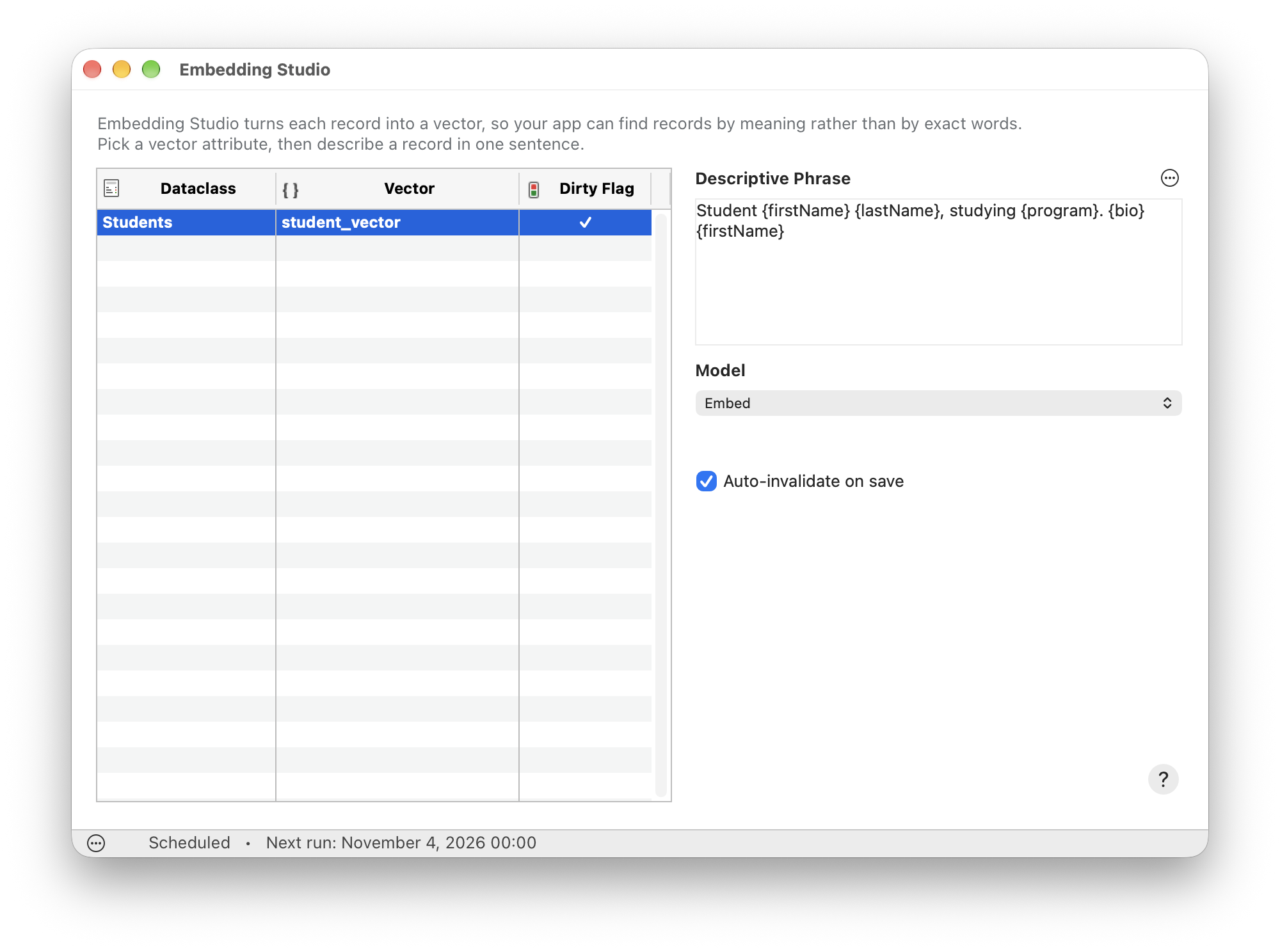
That’s it. You don’t need to write the logic that generates the vectors. 4D knows how to build the embedding from your configuration.
Your vectors are now ready to use in your application, for example, to perform semantic searches.
In a production application, data is never static. If an embedding is based on a document’s title and content, any change to either must be taken into account.
Without a dedicated mechanism, you have two possible strategies, neither of which is ideal:
4D Embedding Studio takes a more targeted approach. When an entity is modified, 4D determines whether the change affects the composition of its embedding. Only the affected vectors are invalidated and marked for recalculation.
You don’t have to develop or maintain your own change-detection logic.
Note: detection applies to fields in the table itself. If the embedding content uses an attribute from a related table, a computed attribute, an alias, or a property of an object, changing it does not automatically invalidate the vector. In that case, invalidate vectors programmatically or force their recalculation.
When a change requires an embedding to be updated, 4D Embedding Studio lets you choose how the vector should be marked as outdated.
If no tracking field is defined, an invalidated vector is automatically replaced with Null. It is therefore no longer used in searches until it is calculated again.
This option works well for applications that prioritize strict consistency: it is better to return no results than to rely on an embedding that no longer matches the current data.
You can also add a Boolean field named <vector_name>_dirty to the structure. When an update is needed, this field is set to true and the existing vector is kept until it is recalculated.
Your application can then choose to keep using this vector temporarily or exclude it by filtering on “<vector_name>_dirty = false”.
This strategy supports service continuity while allowing you to identify exactly which vectors are waiting to be recalculated.
Changing the model is a special case: different models produce vectors that cannot be compared with one another. After a model change, all vectors must therefore be recalculated, and 4D Embedding Studio automatically marks all affected records as dirty. Until they are recalculated, exclude them from your searches with the “<vector_name>_dirty = false” filter.
If your business logic requires complete control, you can also disable automatic invalidation and manage this lifecycle yourself.
Once vectors are marked as outdated, their recalculation is handled by the 4D Embedding Studio scheduler. Simply choose how often it should run, then start it: either by enabling the “Execute the ‘On Host Database Event’ method of components” option in Structure Settings, on the Security page (disabled by default), or with a single line of code:
cs.EmbeddingStudio.Scheduler.me.start()4D Embedding Studio then orchestrates the processing for you.
Recalculations run asynchronously without blocking users. You can adjust their frequency to your application’s needs: run them regularly, batch updates, or trigger them on demand, for example, after a deployment or a major change to your data.
An error does not interrupt processing: vectors that could not be calculated remain pending and are automatically retried during the next run.
This lets you find the right balance between fresh results, processing load, and AI API costs, while 4D handles the mechanics required to recalculate your embeddings.
Once your vectors have been calculated, semantic search takes two steps.
First, calculate an embedding for the text entered by the user. For the vectors to be comparable, it must be calculated with the same model as the stored vectors. Using the definition configured in 4D Embedding Studio ensures that you use the right one.
// Retrieve the embedding definition configured in 4D Embedding Studio
var $settings:=cs.EmbeddingStudio.Settings.new()
var $definition:=$settings.find("Students"; "student_vector")

// Compute the vector of the user's query with the same model
var $result:=cs.EmbeddingStudio.Playground.new().embed("apps that are easy to use"; $definition)
Next, run an ORDA query on the vector field. 4D natively compares the query vector with those of your entities, keeps the ones that exceed the similarity threshold, and sorts them from closest to farthest:
// Find the most similar students, best match first
var $students:=ds.Students.query("student_vector > :1 order by student_vector desc"; \
{vector: $result.vector; threshold: 0.5})
If you use a dirty field, simply add a criterion to exclude vectors waiting to be recalculated:
var $students:=ds.Students.query("student_vector > :1 and student_vector_dirty = false order by student_vector desc"; \
{vector: $result.vector; threshold: 0.5})
This search can find a student whose biography mentions “intuitive interfaces” and “usability testing,” even though none of those words appears in the query.
To learn more about vector search in 4D (similarity metrics, thresholds, and combining it with traditional criteria), see our previous articles:
Now that you have everything you need to get started, why not try 4D Embedding Studio in your own application? First, add it to your project: open “Design > Project Dependencies”, click the “+” button, and select the “GitHub” tab. Choose “4D Embedding Studio” from the list of standard 4D components, then add it to your project.
The dependency rule is set to “Follow 4D version” by default, keeping the component aligned with your 4D version. Restart your project when prompted to load the component.
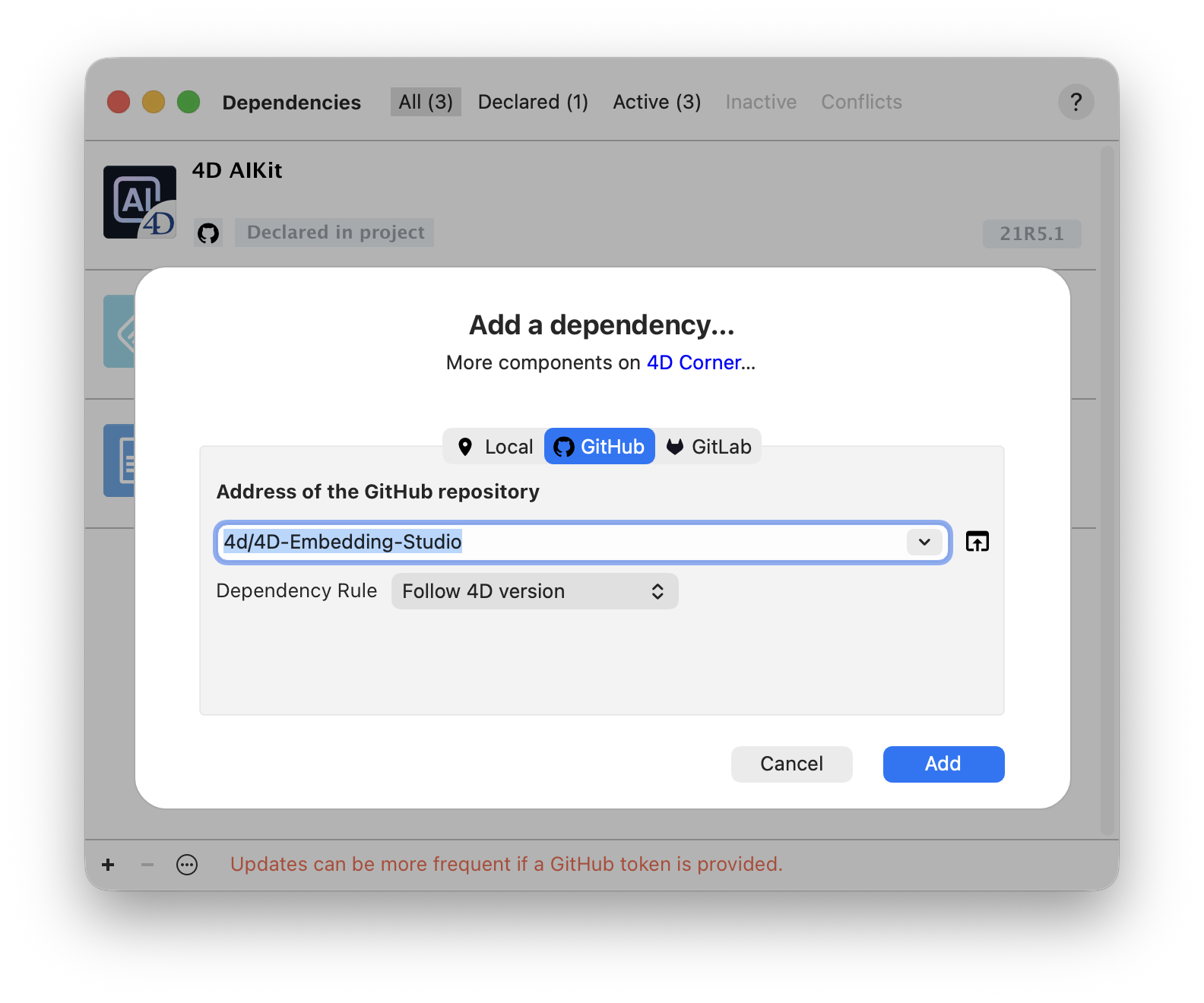
For more information, see Managing project dependencies and Take Control of Standard 4D Components.
With 4D Embedding Studio, 4D handles all the mechanics required for the lifecycle of your embeddings:
There’s no need to build or maintain this infrastructure: your code can focus on what brings value to your application, such as semantic search, recommendations, or content matching.
See the documentation to configure your first embedding and learn how to integrate it into your semantic searches.
Got a question, suggestion or just want to get in touch with the 4D bloggers? Drop us a line!
* Your privacy is very important to us. Please click here to view our Policy
Comments are not currently available for this post.