
Seamlessly open 4D code from 4D into VS Code

October 20, 2026
4 min read
Many developers want to bring the best of the VS Code ecosystem to their everyday 4D work: AI-assisted coding, Git integration, its extension library and so on.
4D and VS Code already work side by side on the same project today, with no conflict: there’s no synchronization between the two IDEs, they simply read and write the same files on disk. What’s been missing is a smooth way to get from the 4D IDE to the file you want to edit in VS Code.
Starting with 4D 21 R5, that’s no longer a problem. This feature makes it effortless to open your 4D code directly in VS Code from within the 4D IDE: you keep working mainly in the one you prefer day to day, and reach the other in a single move whenever you need it.
A preference named “Code editor” is available in 4D Preferences → Methods → Options, with three choices:
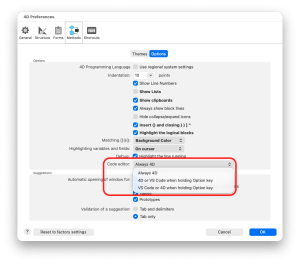
This preference applies everywhere a method or class is opened or created: double-click in the Explorer, “Open method”, “Go to definition”, the Debugger’s “Edit” and “Stop & Edit” buttons, the runtime error dialog’s “Edit Method” button, and the actions that create a new method or class. There’s no separate command to learn, the same actions you already use simply follow your preference.
A couple of existing shortcuts already use the ALT key for something else: ALT+click on a form object, and ALT+hover+click on a method name in the 4D Code Editor. These keep their current behavior, and SHIFT+ALT reaches the alternative editor through these two gestures instead.
Table forms are stored in folders named after the table number, not the table name, for example, “TableForms/213/MyForm/ObjectMethods/”. Finding the right file by hand in VS Code has long been the main obstacle to using it for form-heavy projects.
With this feature, opening an object method or a form method from the form editor resolves the path automatically and opens the exact file in your configured editor. If the method doesn’t exist yet, 4D creates it first, exactly as it already does today.
When VS Code is the target, 4D hands off the method or class file, together with the project’s folder opened as a VS Code workspace. From there, VS Code decides whether to launch, reuse an existing window, or open a new one. 4D doesn’t manage VS Code’s windows or instances.
VS Code can offer to install the 4D extension (and its 4D-Analyzer linked extension) if it isn’t already installed, so you get proper 4D syntax highlighting, auto-completion, live checking and so on from the very first file you open.
One tip to get the most out of this: skip 4D’s language tokens when working in VS Code, so your code shows up exactly as you wrote it, with clear, readable command and constant names.
Both IDEs remain fully available. This feature simply lets you pick the one you use day to day, and reach the other in one gesture when you need it.
Whether you live in the 4D Code Editor, in VS Code, or switch between the two depending on the task at hand, this feature removes the friction of getting to the right file at the right time, and makes it that much easier to bring VS Code into your daily 4D work. Once you’re there, the whole VS Code ecosystem opens up: Git, extensions, and increasingly AI-assisted, “vibe-coding” workflows for writing code and building forms. No more manual navigation, no more table number lookups, just a direct path from your 4D project to the editor where you want to work, so you can spend less time searching and more time coding.
This feature is demonstrated in the video below:
We hope this feature makes it easier to work with the tools you already know. Are you using VS Code alongside 4D? Tell us about your workflow on the 4D Forums!
Got a question, suggestion or just want to get in touch with the 4D bloggers? Drop us a line!
* Your privacy is very important to us. Please click here to view our Policy
Comments are not currently available for this post.