
The new macOS Tahoe design comes to your 4D applications

April 28, 2026
4 min read

With macOS Tahoe, Apple Inc. introduces a new visual language called Liquid Glass. In this release, we follow this interface style to stay aligned with the latest macOS design evolution.
Starting with 4D 21 R3, your 4D desktop applications automatically adopt this new Liquid Glass interface. No form updates, code changes, or redesign are required.
To support this transition, 4D has adapted its rendering to comply with the new Liquid Glass constraints introduced by macOS. 4D absorbs the complexity of UI evolution, so your applications stay up to date with minimal effort. As a result, Mac users benefit from an interface that is consistent with the system’s current visual style, with minimal effort from developers.
According to Apple, Liquid Glass is a new interface rendering style based on translucent materials, dynamic blur, and subtle lighting effects. These elements adapt to background content and introduce a greater sense of depth while maintaining readability.
Liquid Glass rendering is handled directly by macOS. 4D leverages the system’s graphics engine to apply these visual updates automatically to application windows and standard controls.
No configuration, additional code, or form migration is required. When a 4D application runs on macOS Tahoe, it benefits from the system-provided rendering.
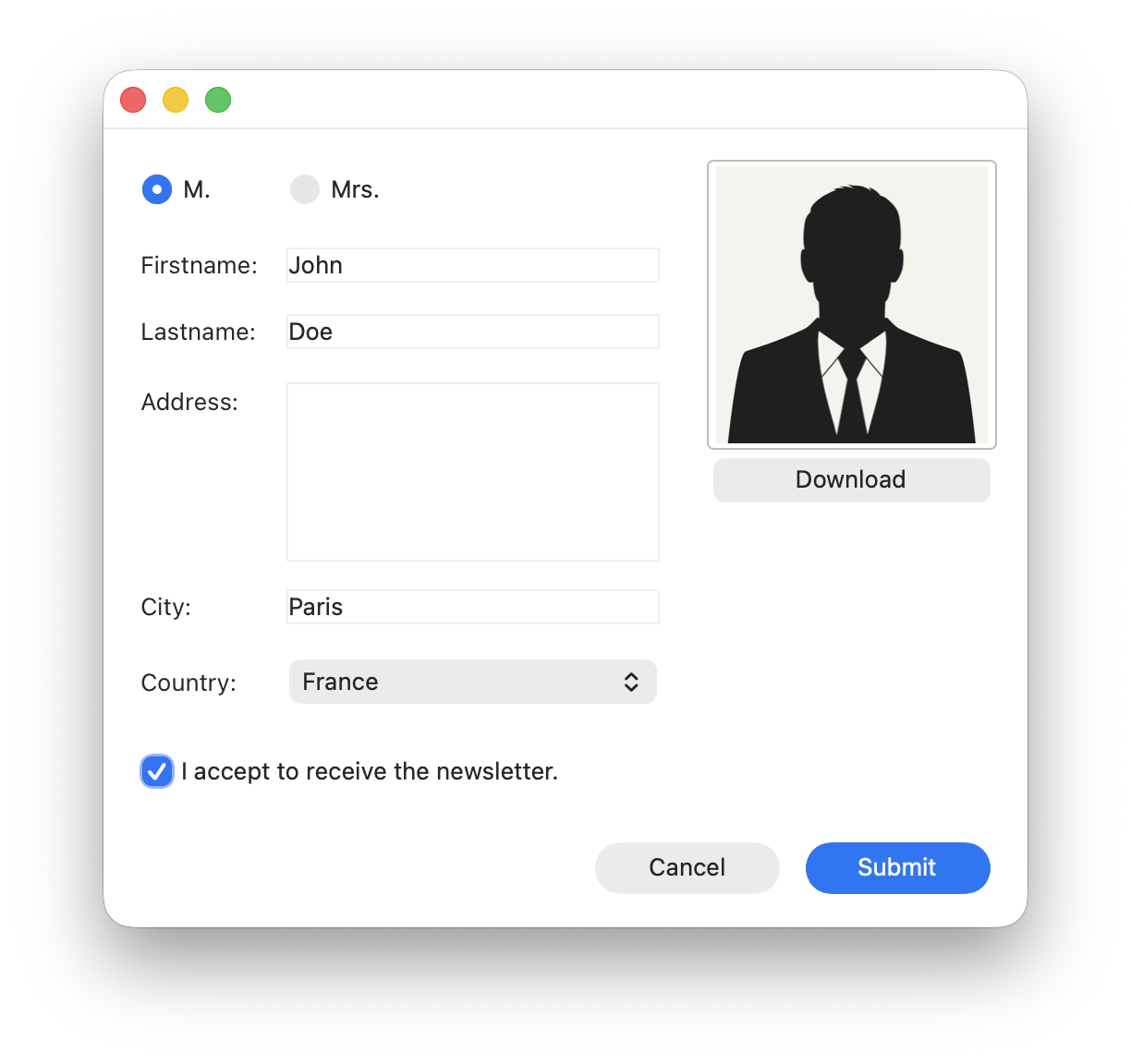
Classic macOS look
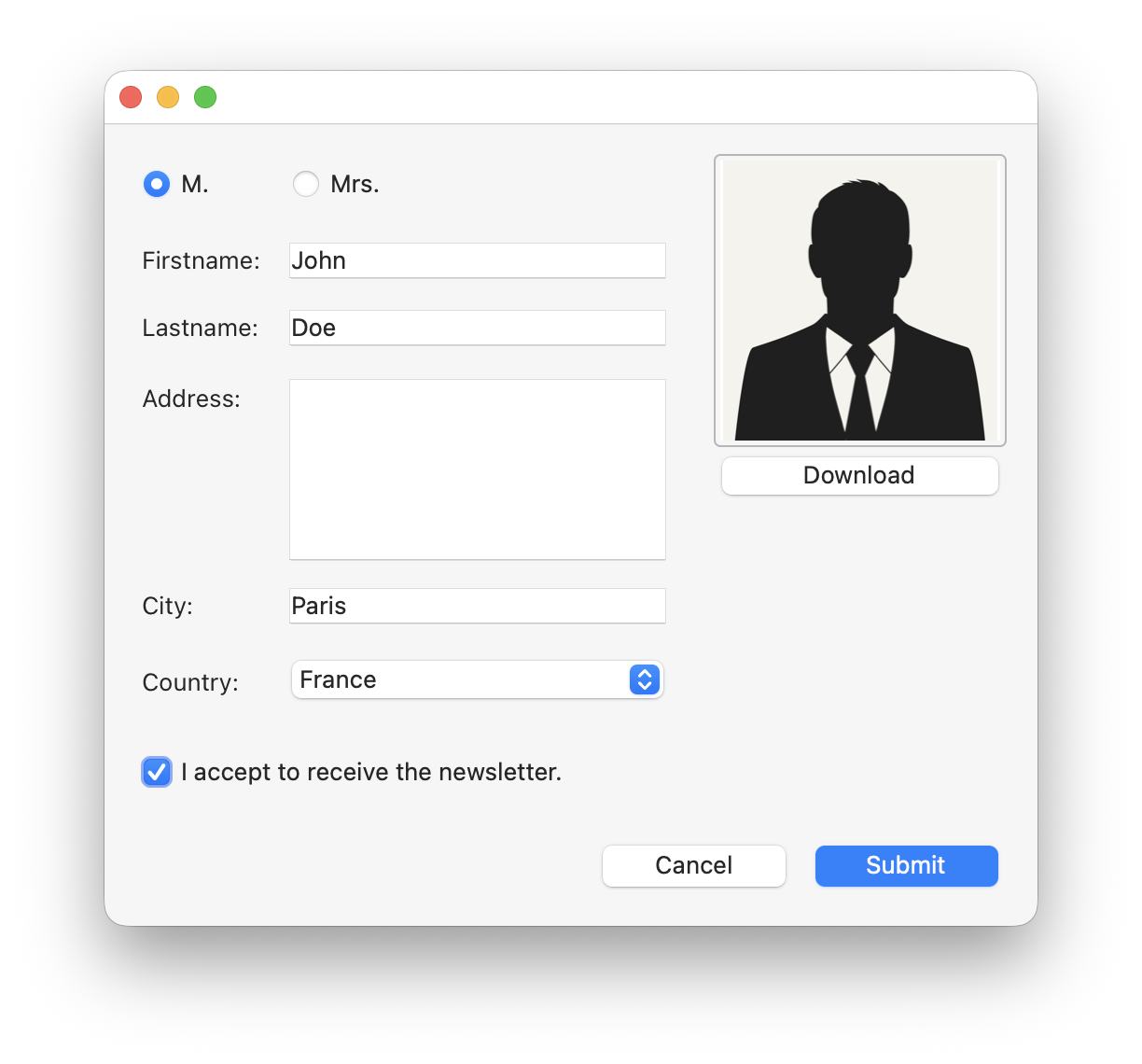
Liquid Glass macOS look
This approach ensures that your interfaces remain aligned with OS standards while preserving your existing investments.
Although Liquid Glass is applied automatically, reviewing certain UI elements can help maintain visual consistency and layout integrity.
Pay close attention to button variants. In Liquid Glass:
The visual switch happens with just a one-pixel difference in height. If your forms contain sequences of buttons with slightly inconsistent heights, you may see a mix of square and rounded styles.
Take a moment to verify button heights to maintain consistent visual alignment.
Radio buttons and checkboxes appear slightly larger under Liquid Glass.
Review spacing and alignment around these controls to ensure readability and visual balance with the updated control sizes.
With Liquid Glass, combo boxes now use a translucent rendering. So, background elements that were previously invisible may appear through the combo box.
If you have overlapping objects in your forms, review those areas carefully. You may need to adjust the visibility of background objects using code to maintain clarity and avoid any unintended objects being displayed.
While Liquid Glass is applied automatically, 4D also provides tools to fine-tune your interface when needed.
You can use CSS media queries to adapt your styling depending on the current form theme. This is particularly useful to handle differences between macOS Classic, macOS Liquid Glass, Windows Classic, and Windows Fluent UI.
@media (form-theme: liquid-glass) {
    .panel {
        borderRadius: 10px;
        fill: #F5F7FA;
        stroke: #CDD6E0;
    }
}

@media (form-theme: mac-classic) {
    .panel {
        borderRadius: 4px;
        fill: #F2F2F2;
        stroke: #D0D0D0;
    }
}
In this example, the appearance of the “.panel” class is automatically adjusted depending on the active form theme, allowing your interface to match the visual characteristics of Liquid Glass or the classic macOS style without additional logic.
In addition, the FORM theme command allows you to detect the current rendering mode programmatically. It now returns values such as LiquidGlass or Classic, making it easy to adjust behavior when needed.
This approach gives you flexibility: most of the time, no changes are required, but you still have full control when fine adjustments are necessary.
There is an important distinction to understand.
For 4D and 4D Server applications running with 4D 21 R3 on macOS 26 Tahoe, Liquid Glass cannot be disabled. The rendering is handled natively by the operating system and is applied automatically.
However, for engine-based applications, it is possible to disable Liquid Glass during a transition phase. To do so, add the “UIDesignRequiresCompatibility” key to the application’s “Info.plist” file. This allows the engine application to retain the previous visual style while you adapt your interface.
This flexibility can help smooth migrations. In the long term, adopting the system’s native rendering ensures better visual consistency and integration.
With Liquid Glass support on macOS Tahoe, 4D applications adopt the system’s current visual style automatically, without requiring changes to code or forms.
This native integration highlights one of 4D’s key advantages: applications evolve with the operating system’s UI standards with minimal effort, while other technologies may require manual redesign or adaptation.
As a result, developers can focus on functionality while still delivering interfaces that remain visually up to date.
Got a question, suggestion or just want to get in touch with the 4D bloggers? Drop us a line!
* Your privacy is very important to us. Please click here to view our Policy
Comments are not currently available for this post.