
Search by Meaning, Not Metadata: Semantic Image Filtering with 4D.Vector

September 8, 2025
9 min read

Your users don’t think in filenames or folder hierarchies. They think in ideas.
It doesn’t matter if that idea comes from an image, a customer order, an email, or a 4D Write Pro document — the challenge is the same: how do you deliver results that match intent, not just keywords?
With 4D.Vector and 4D AI Kit, your application can finally make sense of meaning. In this post, we’ll illustrate it with semantic image similarity search. And here’s the key: we’re not really working with raw images at all — we’re working with their descriptions. The very same approach works for any kind of text data in your application.
Traditional search has one job: match exact terms. But your users don’t always know what exact term to use. They describe things. They express intent. They think in messy, beautiful, human language.
To make search work the way your users think, you need more than string matching. You need understanding — and that’s where vector embeddings come in.
An embedding is how you turn messy, unstructured input — a sentence, a prompt, or image — into a structured vector of numbers. It’s not just a list of tokens or keywords. It’s a mathematical snapshot of meaning.
When you send the phrase “a robot painted in watercolor” to OpenAI’s text-embedding-ada-002 model, it returns a few hundred floating-point values. Each one captures something: the topic, the mood, the style, the semantic relationships baked into that prompt. Similar phrases produce similar vectors. Dissimilar ones? They land further apart.
Think of it as placing meaning on a map. The closer two phrases are in that high-dimensional space, the more alike they are — regardless of wording. That’s the foundation for building search, recommendations, clustering, and categorization based on meaning.

In our demo page, you can let users search semantically. They type a prompt or pick one from a list, and your app returns images ranked by how well they match the idea.
The UI is minimal on purpose:
A matrix that displays images, sorted by similarity to the prompt
Here’s the key: we’re not vectorizing the raw images. Instead, each image is analyzed by AIKit’s OpenAIVision, which generates a caption and description in natural language. That description is what gets embedded into a 4D.Vector and stored.
This way, everything is compared on the level of meaning, not pixels.
Note: This example uses 4D Qodly Pro, but the same logic applies perfectly to standard 4D forms too. In fact, all the code runs inside 4D methods and functions. The only difference is how you choose to display the results — in a classic 4D form or a Qodly page.
When someone types a prompt and clicks “Use Custom Prompt“, 4D runs the calculate() function from the VectorManagement class:
exposed shared Function calculate($prompt : Text) : cs.PicturesSelectionThis kicks off by grabbing your OpenAI API key from memory (Storage.OpenAI.key) — which should be submitted from the first input field in the Info tab. If you skipped that and still clicked Use Custom Prompt, a modal will appear asking you to enter your key before continuing:
If (Storage.OpenAI.key#"")
	$apiKey:=Storage.OpenAI.key
Else
	$apiModal:=Web Form.setApiKeyModal
	$apiModal.show()
End if
Note: This example uses OpenAI for AI operations, but you can use any OpenAI-compatible provider — even a local model with Ollama. We’re using OpenAI here because it’s simple to set up and requires no local installation. If you want to follow along, request an OpenAI key here.
Next, you call the generateVector() function inside the AIManagement class:
var $vector := cs.AIManagement.new($apiKey).generateVector($prompt)What’s happening here?
You’re using OpenAI’s text-embedding-ada-002 model — optimized for short text — to turn the prompt into a high-dimensional vector. By using the .create() method to send the prompt and the text-embedding-ada-002 model as a request to OpenAI and returns a JSON structure containing the vector. That vector is then wrapped in a 4D.Vector object, giving us something we can compare and sort natively in 4D.
property clientAI : Object

Class constructor($openAIKey : Text)
  This.clientAI := cs.AIKit.OpenAI.new($openAIKey)

Function generateVector($text : Text) : 4D.Vector
  var $model := "text-embedding-ada-002"
  var $result := This.clientAI.embeddings.create($text; $model)
  return $result.vector
At this point, you have translated the user’s prompt into a structured format that 4D can use for semantic comparison.
With your vector in hand, now you compare it to all your stored image-description vectors in the database:
var $pictureList := This._calculateVectors($vector)And inside _calculateVectors, here’s what happens:
For each ($picture; $pictureList)
  $picture.cosineSimilarity := $vector.cosineSimilarity($picture.vector)
  $picture.dotSimilarity := $vector.dotSimilarity($picture.vector)
  $picture.euclideanDistance := $vector.euclideanDistance($picture.vector)
  $picture.save()
End for each
Each similarity measure gives you a different lens:
If you’re new to vector math in 4D, the first blog post in this series covers how to create and compare vectors using these methods and when to use each.
Once all similarity scores are calculated and stored on the image entities, you sort by cosine similarity and return the results:
return $pictureList.orderBy("cosineSimilarity desc")This means the most conceptually relevant images appear first, regardless of their filename, description, or metadata.
If someone chooses a prompt from the dropdown and clicks Use Selected Prompt, you skip the embedding step entirely:
exposed shared Function calculateWithSelectedPrompt($prompt : cs.PromptsEntity) : cs.PicturesSelection
  var $pictureList:=This._calculateVectors($prompt.Vector)
  return $pictureList.orderBy("cosineSimilarity desc")
No extra OpenAI call is needed — the prompt’s vector is already saved in the database. You simply reuse the 4D.Vector stored in the Prompts dataclass when the prompt was first created.
Just like image descriptions, each prompt is vectorized once, then stored for reuse. That gives you:
No API call → Instant results, no network delay
No token cost → More budget-friendly, especially at scale
Works offline → Everything runs locally, no dependency on an external service
When someone uploads an image, you don’t embed the pixels. Instead, you describe the image with OpenAI Vision, and embed that description.
In the vectorizeImageDescription function, two prompts are defined: one for a short caption, and one for a fuller description. Both are crafted to return single, fluent sentences optimized for embeddings:
// --- Prompts (single, fluent, embedding-friendly) ---
$captionPrompt:="You are a precise visual captioner. "+\
	"Write one short, clear English sentence (12–20 words) that summarizes the main subject of the image. "+\
	"Keep it straightforward and descriptive, not poetic. Output only the sentence."

$descriptionPrompt:="You are a detailed scene describer. "+\
	"Write a longer English paragraph (80–150 words) that expands on the caption. "+\
	"Include context, secondary elements (icons, arrows, checklists, text, logos), and atmosphere so nothing important is missed. "+\
"Avoid repeating the caption verbatim. Output only the description."Once the comparison is done, your matrix updates instantly. Images are ranked based on similarity score.
You search for: “a watercolor painting of a robot” — and see images with soft textures and robotic forms:
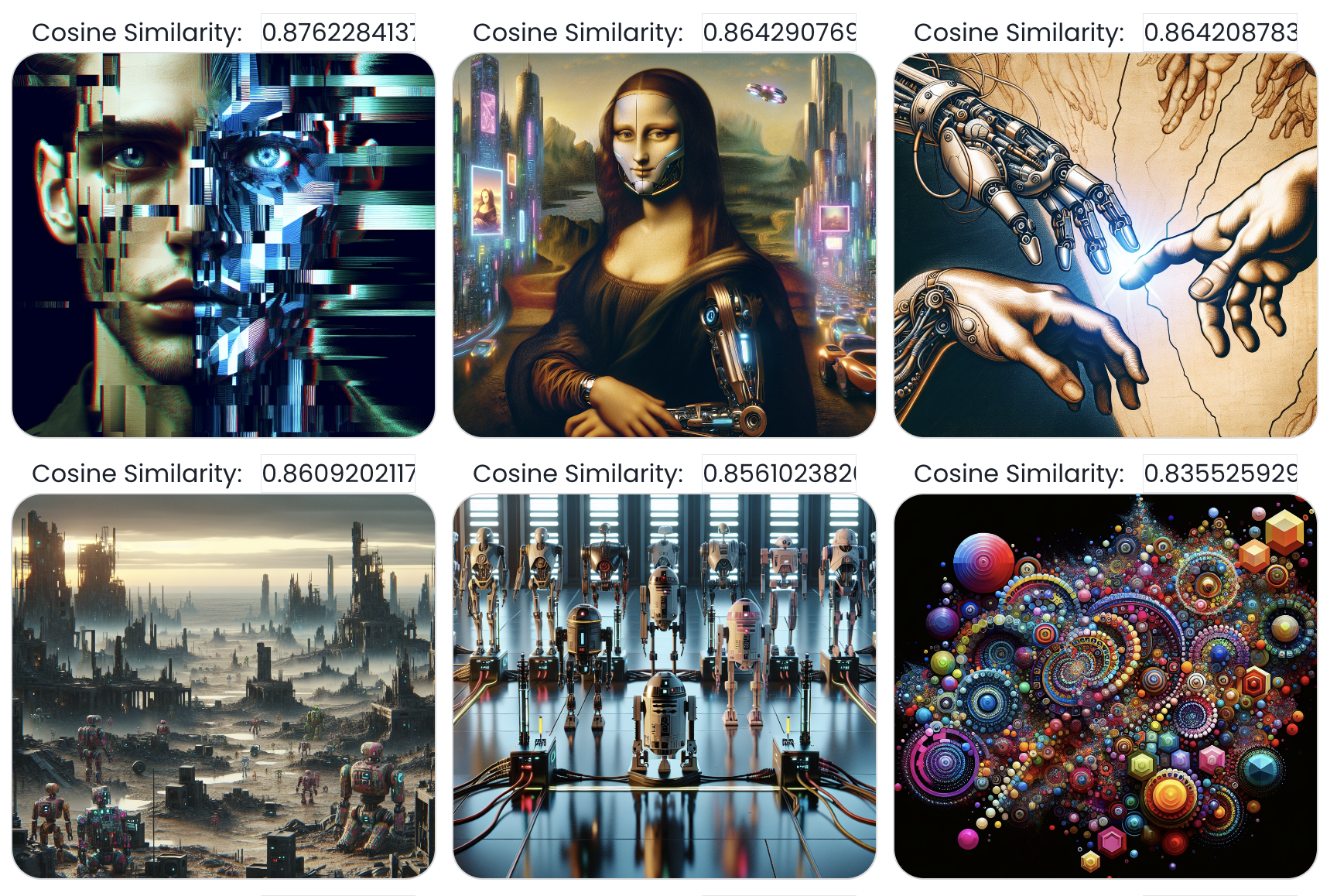
You switch to: “a vibrant and sunny beach scene with colorful elements” — and get a totally different, but equally relevant, result set:
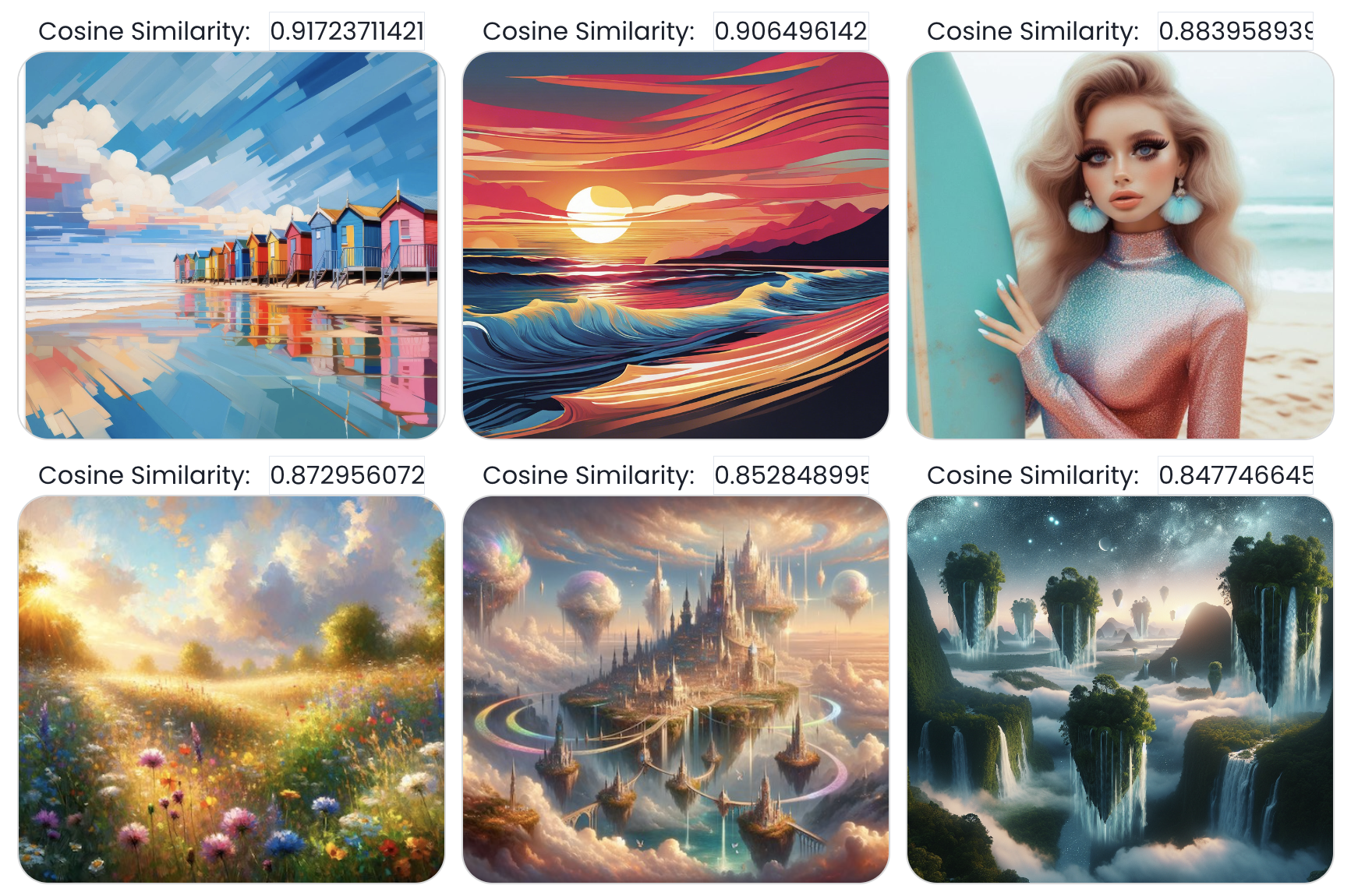
Whether typed or uploaded, you’re always comparing ideas — not pixels, not filenames.
Using vectors with AI unlocks real, immediate value in your 4D applications:
Smarter search: Let users search by meaning, not keywords. No tags, no filters — just relevant results.
Native logic: Everything runs inside 4D. No need for external search engines or third-party tools.
Reusable pattern: Works for images, documents, products, tickets — anything you want to compare by concept.
Low setup, high impact: A few lines of code give you ranking, filtering, and recommendations powered by AI.
Cheaper + faster: Embed once, store the vector, reuse forever. No repeated API calls or token costs.
AI-ready foundation: You’re not just adding search — you’re laying the groundwork for chatbots, recommendations, and smarter workflows.
With 4D.Vector and 4D AI Kit, you don’t need to build intelligence — you plug it in.
Final Thoughts
You’re not bolting AI onto your app — you’re building intelligence into your core logic.
With 4D.Vector and 4D AI Kit, you give your app the ability to understand intent, not just input. To surface meaning, not just matches.
The tools are ready. The code is light. The value is real. All you need now… is a prompt.
Got a question, suggestion or just want to get in touch with the 4D bloggers? Drop us a line!
* Your privacy is very important to us. Please click here to view our Policy
Comments are not currently available for this post.