
Integrate 4D Components Directly from GitLab

April 27, 2026
3 min read

Managing external components is a key part of modern development workflows. While GitHub integration already simplified dependency management in 4D, many developers work in more diverse environments.
Some teams host their components on a self-managed GitLab instance or rely on the official GitLab.com server. Following a request from the forum, 4D 21 R3 now introduces native support for GitLab repositories directly in the Project Dependencies interface.
This video demonstrates how to create a release from a 4D component build and how to retrieve and integrate it using the Project Dependencies interface:
Adding a GitLab component follows the same workflow as GitHub.
From the Project Dependencies interface, click “+” button to add a dependency and select the GitLab tab. You can then:
If you copied a GitLab URL beforehand, 4D automatically detects it and pre-fills the fields, saving you time.
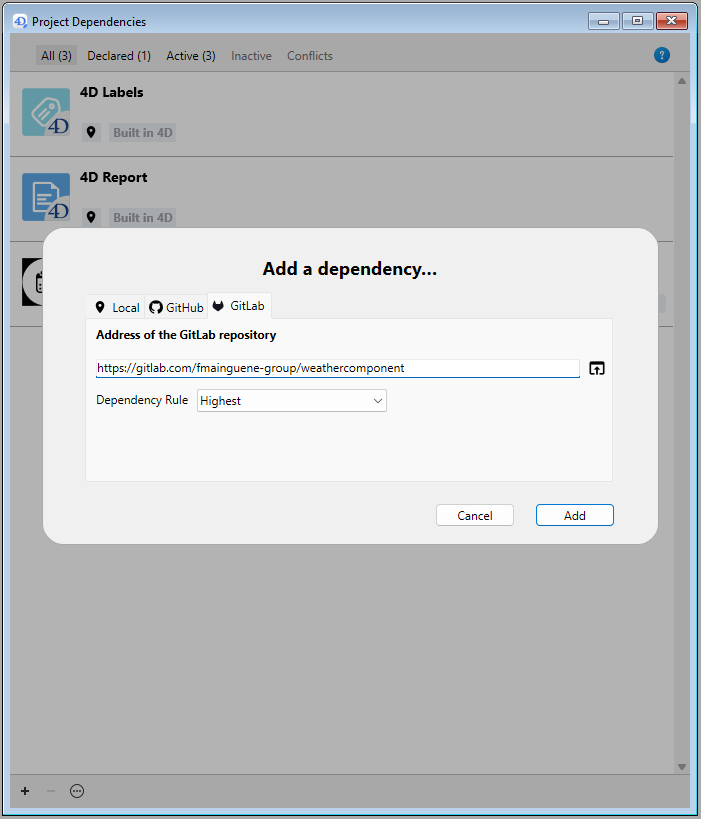
When you click the Add button, a new component will appear in your Project Dependencies screen, marked as ready to be downloaded on the next project restart:
 After restarting your project, the component will be correctly installed and ready to use:

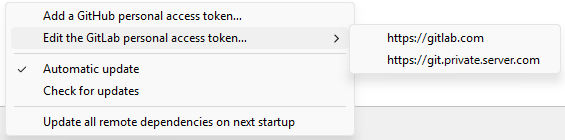
When accessing private repositories, authentication is required. 4D makes this seamless:
This ensures secure and flexible access to your dependencies.
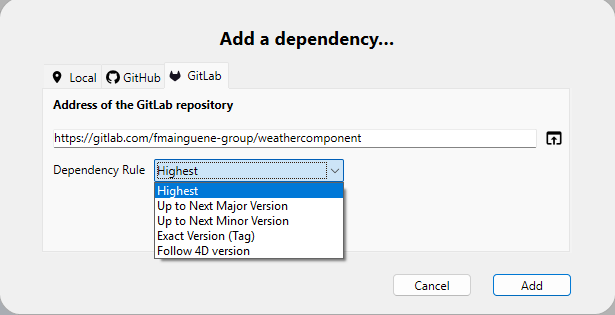
When a repository is valid, just as with GitHub, you can choose how to retrieve it:
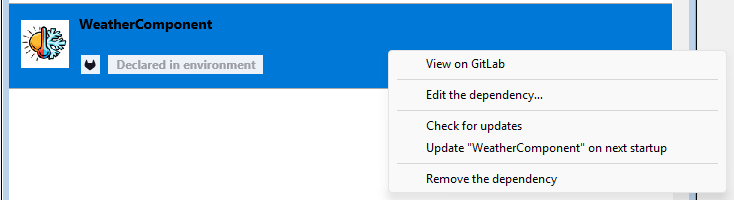
Once added, GitLab dependencies behave just like other components:
GitLab integration brings more flexibility and control to your 4D projects. Whether you are working with private repositories, enforcing strict versioning, or simply streamlining your workflow, this feature helps you stay focused on what matters most: building your application.
Give it a try and bring your components hosted on GitLab directly into your 4D projects with ease.
Got a question, suggestion or just want to get in touch with the 4D bloggers? Drop us a line!
* Your privacy is very important to us. Please click here to view our Policy
Comments are not currently available for this post.