
Multi-Level Lists in 4D Write Pro: Full Control Over Structure, Numbering, and Style

June 8, 2026
6 min read
Starting 4D 21 R3, you can create elaborate structured bullet and numbered lists of multiple levels in 4D Write Pro using style sheets, and you can export them to all formats including docx. For example, if you want to create a multi-level list whose numbering adjusts automatically when content is removed or added across all levels, or if you want to have titles and subtitles with consistent styles and numbering across your whole 4D Write Pro document, then this new feature is what you need. In this blog post, we will show you exactly how to create multi-level lists using multi-level style sheets.
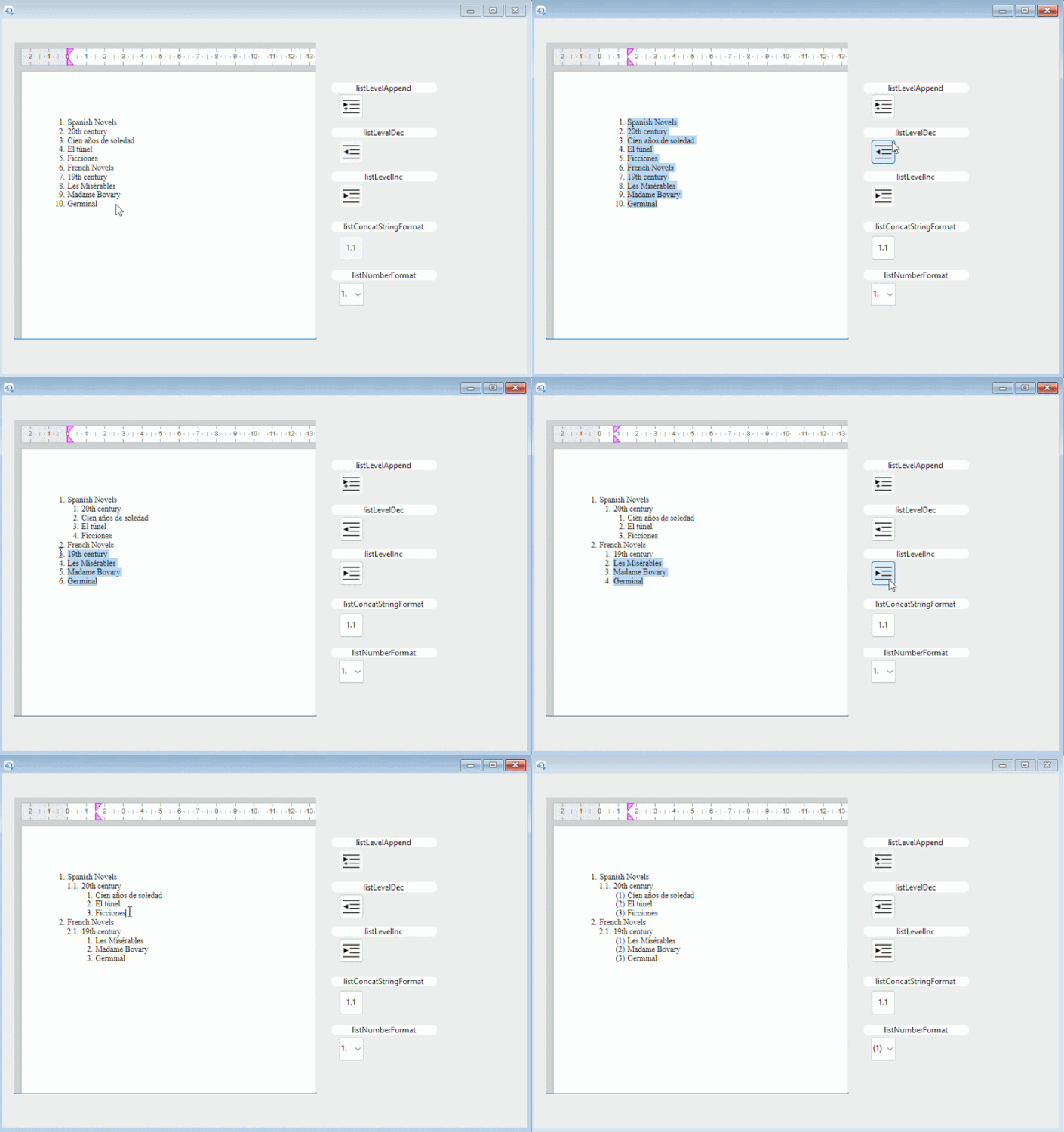
Specifically, we will explain how to use standard actions as well as commands in order to manage the multi-level style sheets.
HDI_4DWP_MultiLevelStyleSheets
If you want to achieve what’s in the animation below, here is how to do it:
Prior to 4D 21 R3, 4D Write Pro already offered style sheets that can include all paragraph styles (including list types), and that can be applied to paragraphs. We have enriched this existing concept so that it can be used to create multi-level lists.
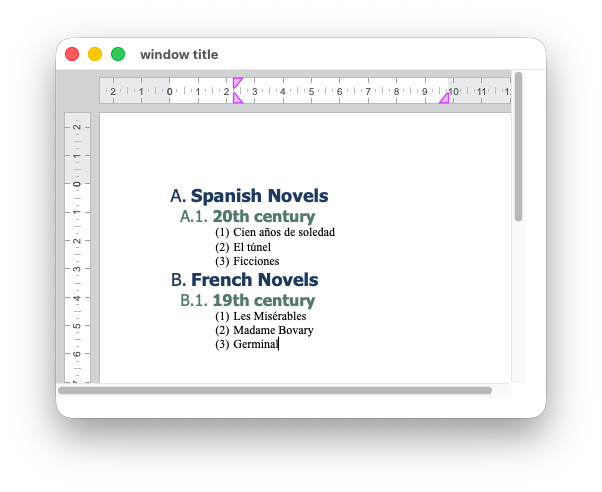
The multi-level list in the screenshot below has 3 levels: one root-level and 2 sub-levels. To achieve it, you need 3 paragraph style sheets that are related to each other: one root-level style sheet and 2 sub-level style sheets related to it. Here is how to do that in concreate steps:
Here is all the code that you need to create the multi-level list using multi-level style sheets put together:
$spanishNovels:="Spanish Novels\n20th century\nCien años de soledad\nEl túnel\nFicciones\n"
$frenchNovels:="French Novels\n19th century\nLes Misérables\nMadame Bovary\nGerminal"
WP SET TEXT(WParea; $spanishNovels+$frenchNovels; wk append)

//Creating 3 multi-level style sheets
WP New style sheet(WParea; wk type paragraph; "MyList"; 3)

//Getting the multi-level style sheets objects
levelStyle1:=WP Get style sheet(WParea; "MyList"; 1)
levelStyle2:=WP Get style sheet(WParea; "MyList"; 2)
levelStyle3:=WP Get style sheet(WParea; "MyList"; 3)

//Modifying the paragraph styles of the multi-level style sheets
WP SET ATTRIBUTES(levelStyle1; \
{listStyleType: wk upper latin; color: "#1F3A5F"; fontSize: 18; font: "Tahoma"; listFont: "Tahoma"; fontBold: wk true})
WP SET ATTRIBUTES(levelStyle2; \
{listStyleType: wk decimal; listConcatStringFormat: True; color: "#52796F"; fontSize: 16; font: "Tahoma"; listFont: "Tahoma"; fontBold: wk true})
WP SET ATTRIBUTES(levelStyle3; \
{listStringFormatLtr: "(#)"; listConcatStringFormat: False; color: "Black"; fontSize: 12; font: "Times New Roman"; listFont: "Times New Roman"})

//Setting the  multi-level style sheets to the appropriate paragraphs
$paragraphs:=WP Get elements(WParea; wk type paragraph)
For ($i; 0; 9)
	If (($i=0) ' ($i=5))
		WP SET ATTRIBUTES($paragraphs[$i]; wk style sheet; levelStyle1)
	Else
		If (($i=1) ' ($i=6))
			WP SET ATTRIBUTES($paragraphs[$i]; wk style sheet; levelStyle2)
		Else
			WP SET ATTRIBUTES($paragraphs[$i]; wk style sheet; levelStyle3)
		End if
	End if
End for
Multi-level lists are not only available inside 4D Write Pro, they are also preserved when exporting or importing to or from other formats.
When you export a 4D Write Pro document containing multi-level lists, the resulting document keeps the same list structure and levels across all supported export formats, including DOCX, PDF, SVG, HTML webpage complete, and HTML-MIME. This means your multi-level numbering (root-level and sub-levels) remains consistent, without flattening the list or losing indentation and hierarchy.
Also, when importing a DOCX document that contains a multi-level list, 4D Write Pro preserves the same multi-level structure in the resulting 4D Write Pro document.
Both flat and multi-level lists are imported with their hierarchy intact, and you can continue editing them programmatically or through standard actions.
With multi-level style sheets in 4D Write Pro, creating structured and professional documents becomes simpler and more powerful than ever. Whether you are building complex outlines, organizing hierarchical information, or ensuring consistent numbering across large documents, this feature gives you full control over the structure and presentation of your content.
By combining standard actions for interactive editing and 4D commands for programmatic control, you can easily create, manage, and maintain multi-level lists that automatically adapt as your document evolves. Even better, these lists retain their structure and formatting when exporting or importing documents, ensuring seamless interoperability with formats such as DOCX, PDF, HTML, and more.
While 4D 21 R3 already provides powerful capabilities to manage multi-level lists programmatically and through standard actions, a dedicated user interface to handle these features more intuitively will be introduced in 4D 21 R4, further enhancing the overall experience.
For more details about lists in 4D Write Pro, check out the documentation, and for your questions and remarks, check out the 4D forum.
Got a question, suggestion or just want to get in touch with the 4D bloggers? Drop us a line!
* Your privacy is very important to us. Please click here to view our Policy
Comments are not currently available for this post.