
Give Your Form Objects the Border Color They Deserve

October 27, 2026
4 min read

A well-chosen border color can make a form easier to understand and give it a more polished, consistent appearance. Whether you want to highlight an important field, distinguish a group of objects, or simply match your application’s visual identity, borders can be an effective part of your UI design.
Starting with 4D 21 R5, you can define the border color independently of the font color for objects that have text, such as static text and input objects. The border color is also available for objects that don’t have a text color, such as subforms and spinners, giving you consistent control over borders across a wider range of form objects. Configure it in the Form Editor, update it dynamically with 4D code, or apply it through CSS.
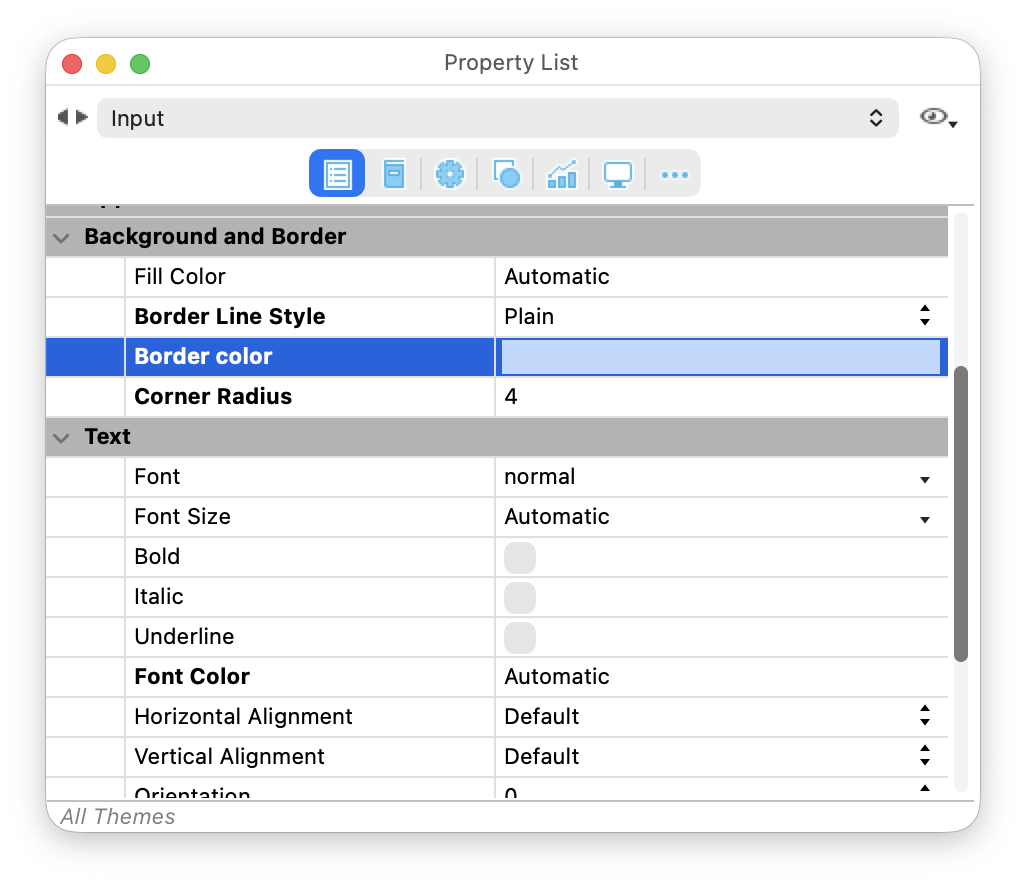
The new “border color” property gives each supported object a dedicated border color. Select an object, then choose the color in the Border section of the Inspector.
For objects that have a font color, such as static text or input objects, the border color can now be defined independently. For objects without a text color, such as subforms or spinners, the property simply gives you direct control over the border.
The property works with the “plain” and “dotted” border styles. For objects that have a font color, its default value is “Same as Font”. For objects without a text color, the default value is “Automatic”. These defaults preserve the appearance of existing forms while allowing you to define a separate border color whenever you need one.
For example, you can keep a strong text color while using a more subtle outline, give a group of input fields a shared accent color, or apply a consistent border color to different types of form objects without changing their other visual properties.
Your application’s state can now influence the border independently of the object’s other colors. You can highlight the current input, indicate a validation issue, or draw attention to a list that requires action. The same approach can be used with objects that don’t have a text color. For example, you can use a specific border color to visually distinguish a subform or highlight a spinner when it requires attention.
For example, when a user validates a form, you can immediately point out an invalid value by changing the input’s border color and displaying an additional message next to it.
// Example called when the user validates the form.
If (Not(Is valid email(Form.email)))
    OBJECT SET BORDER STYLE(*; "email"; Border plain)
    OBJECT SET RGB COLORS(*; "email"; "#D34145"; ""; ""; "#F89794")
    OBJECT SET VISIBLE(*; "labelEmailError"; True)
Else
    // Restore the application's normal input border color.
    OBJECT SET BORDER STYLE(*; "email"; Border plain)
    OBJECT SET RGB COLORS(*; "email"; "#FFFFFF"; ""; ""; "#BEDAFF")
    OBJECT SET VISIBLE(*; "labelEmailError"; False)
End if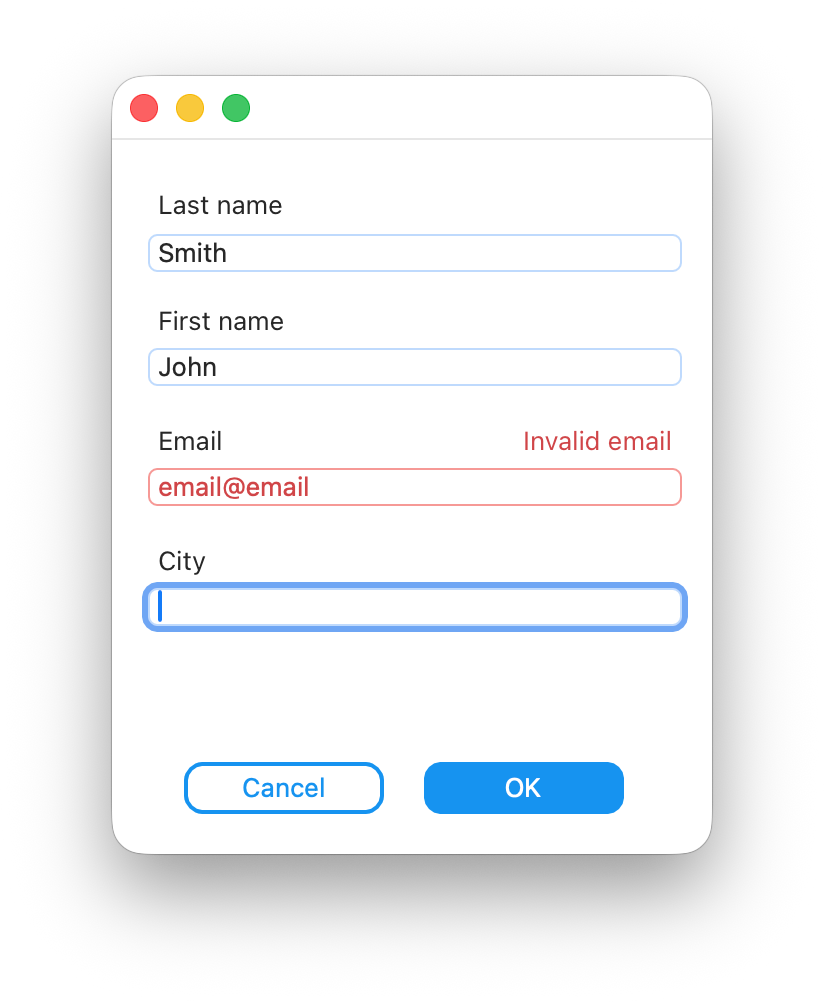
You can also use the border color to match the list box’s outer border with its inner grid lines, creating a consistent look across the entire list.
// Set the list box's border color.
OBJECT SET BORDER STYLE(*; "ordersList"; Border dotted)
OBJECT SET RGB COLORS(*; "ordersList";""; ""; ""; "#336699")
// Use the same color for the inner grid lines.
LISTBOX SET GRID COLOR( *; "ordersList"; "#336699"; True; True)
You can also retrieve the current border color when your form logic needs to preserve or reuse an object’s visual state.
// Read the current colors of a hierarchical list.
OBJECT GET RGB COLORS(*; "categories"; $fontColor; $backgroundColor; $alternateColor; $borderColor)If your project already uses CSS classes for form styling, “borderColor” fits into the same workflow. Define the border style and color together, then reuse the class across the objects that should share the same visual language.
input {
    borderStyle: plain;
    borderRadius: 4;
    borderColor: #0093F5;
}

.secondary-list {
    borderStyle: dotted;
    borderColor: #336699;
}
CSS makes it easier to maintain light and dark presentation rules or apply a consistent visual style across your forms without editing every object individually.
The new border color property gives you more precise control over your form objects:
You can now use borders as a deliberate part of your form’s visual language, whether they are configured in the Form Editor, defined through CSS, or updated dynamically by your application logic.
Got a question, suggestion or just want to get in touch with the 4D bloggers? Drop us a line!
* Your privacy is very important to us. Please click here to view our Policy
Comments are not currently available for this post.