
Choose the Right Native Input Style for Your Interface on macOS

October 27, 2026
3 min read

Modern operating systems keep evolving their native controls to provide a more consistent and polished user experience. With the introduction of Liquid Glass on macOS, input objects get a new appearance with more rounded corners and more space between the text and the border.
While this new look fits naturally into the latest macOS interfaces, it can also have an impact on existing 4D applications. More generous inner padding means that an input object can become taller and display less text at the same width.
Starting with 4D 21 R5, you can control this change with a new border style: “System rounded”.
On macOS, Apple provides two native appearances for input objects: the traditional “square-cornered” look and the newer “rounded” look.
4D now exposes both appearances through the border style property:
This means you can choose the appearance that matches your application’s existing design.
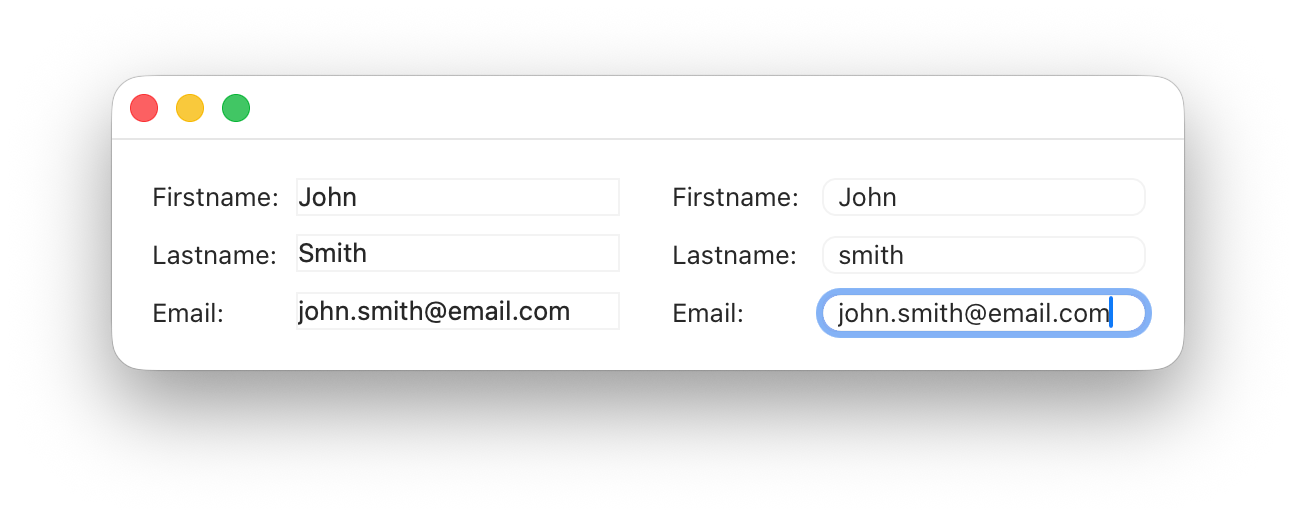
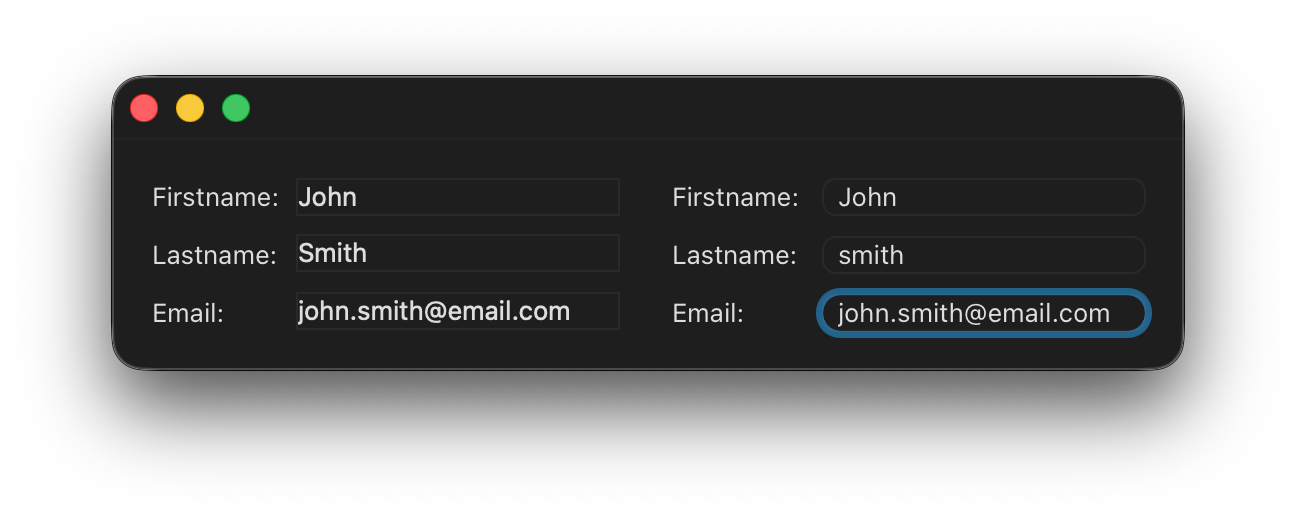
Having both styles available lets you adopt the new appearance progressively instead of having to redesign existing forms immediately.
You can select “System rounded” directly from the border style property of an input object in the Form Editor.
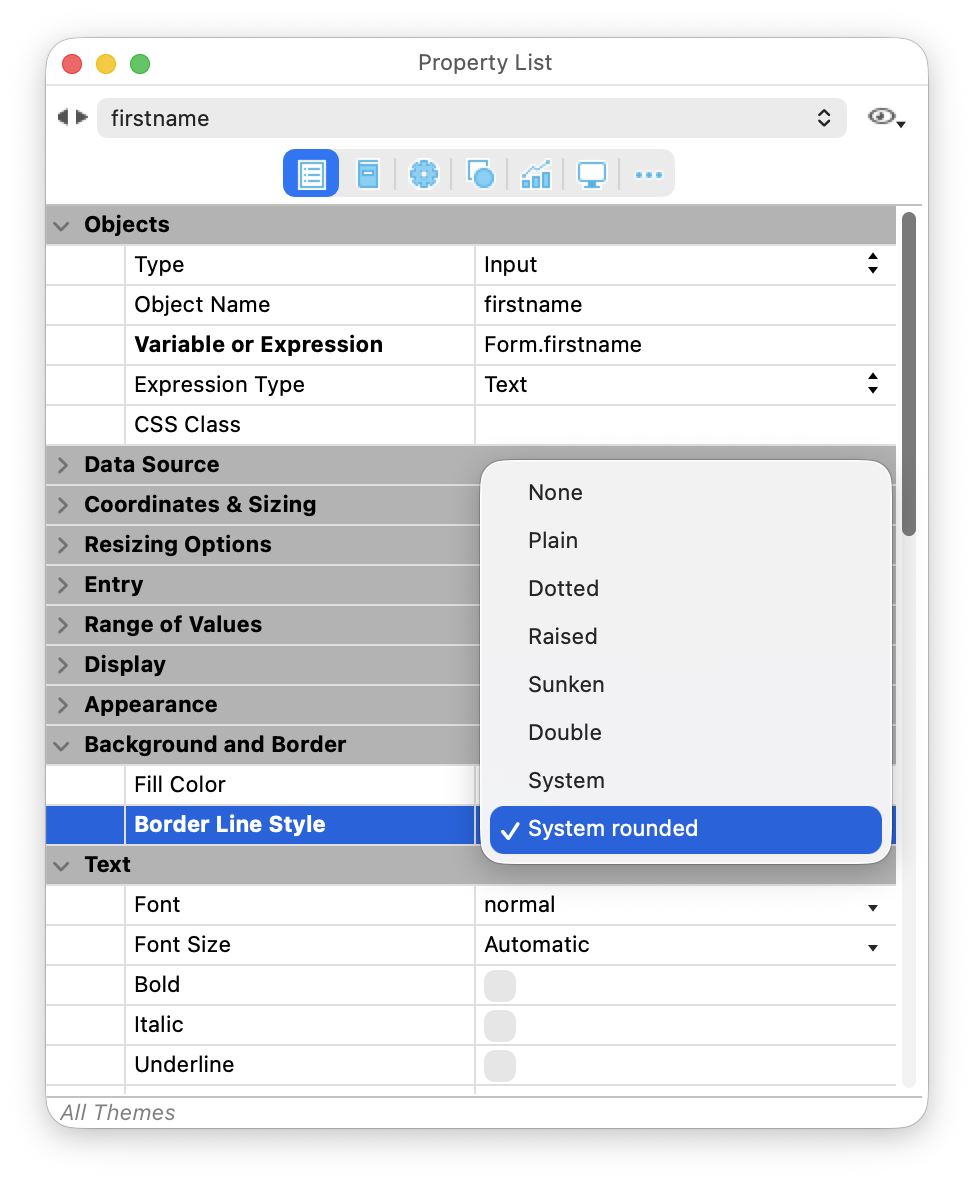
This makes it easy to choose the right appearance for each form, whether you are updating an existing application or designing a new one.
The same choice is also available at runtime with OBJECT SET BORDER STYLE.
OBJECT SET BORDER STYLE(*; "myInput"; Border System Rounded)You can also define the border style using CSS, making it possible to apply different native appearances depending on the form theme:
@media (form-theme: mac-classic) {
  input {
    borderStyle: system;
  }
}

@media (form-theme: liquid-glass) {
  input {
    borderStyle: systemRounded;
  }
}
This allows you to switch between the square and rounded appearances automatically, without having to change each input object individually.
To go further, you can combine these border styles with custom padding to mimic other native macOS controls, such as a Finder-style search field with room for a magnifying glass icon.
“System rounded” is designed to respect the native appearance of each platform.
On macOS, it displays the new rounded input style.
On Windows, “System rounded” uses the same native appearance as “System”. In Classic Windows, input objects have square corners; in Fluent UI, their corners are slightly rounded.
You can therefore use “System rounded” in cross-platform forms without having to introduce platform-specific logic just to preserve a native appearance.
Liquid Glass brings a new native look to macOS input objects, but you don’t have to redesign your existing forms to adopt it.
With “System” and “System rounded”, you can choose the native input style that best fits your application and transition to the new macOS appearance at your own pace.
Ready to give your input objects a new look? Check out the documentation to learn more about the new border style property and how to use it in your forms.
Got a question, suggestion or just want to get in touch with the 4D bloggers? Drop us a line!
* Your privacy is very important to us. Please click here to view our Policy
Comments are not currently available for this post.