
Padding and Vertical Alignment: Fine-Tune Text Placement in Inputs and Text Areas

October 21, 2026
3 min read
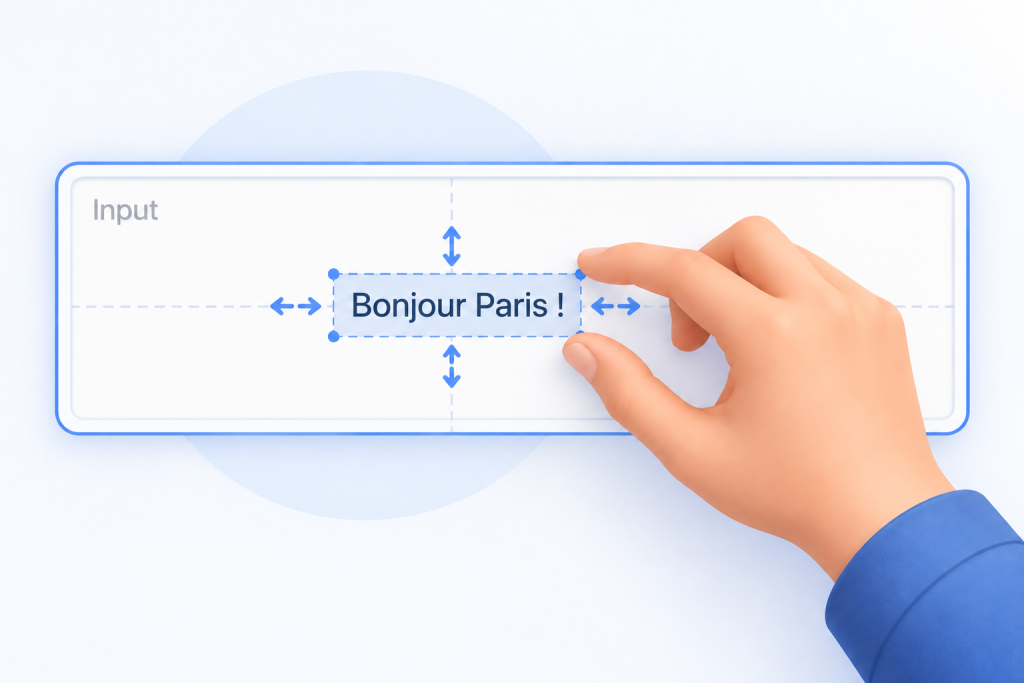
With 4D 21 R5, you can fine-tune the layout of Text Areas and Input objects with explicit vertical alignment and independent padding on every side. These new controls make it easy to create clear and balanced form layouts that fit your application’s visual design.
HDI_FormObj_VericalAlignAndPadding
This animation below shows what you can achieve by combining vertical alignment and padding on an input object.

The Vertical Alignment property is now available in the Form Editor Property List for Text Area and Input objects, with four values: default, top, middle, and bottom. When left at default, rendering is unchanged compared to before this feature, so nothing changes for existing forms unless you explicitly opt in.
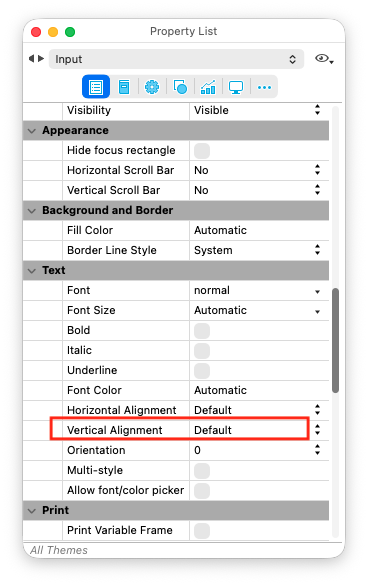
You can also set alignment programmatically with the existing OBJECT SET VERTICAL ALIGNMENT command, whose effective behavior is now extended to these 2 objects:
// Vertical alignment

OBJECT SET VERTICAL ALIGNMENT(*; "txtInput"; Align center)

$align:=OBJECT GET VERTICAL ALIGNMENT(*; "txtInput")
Four new padding properties are available in the Form Editor Property List for Text Area and Input objects: Left padding, Right padding, Top padding, and Bottom padding
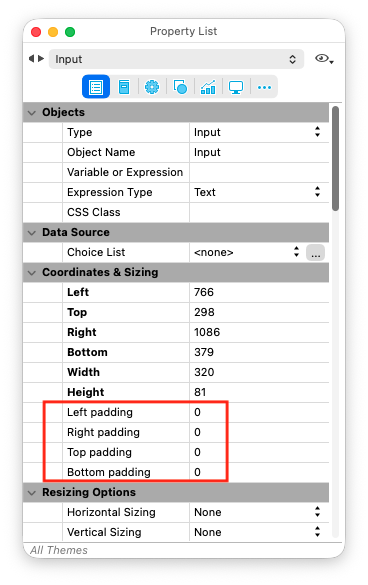
Alongside these properties, two new commands let you control internal spacing precisely: OBJECT SET PADDING and OBJECT GET PADDING. Both take (or return) an object with top, bottom, left, and right attributes, expressed in pixels:
// Object-based padding

OBJECT SET PADDING(*; "txtInput"; {top: 8; right: 12; bottom: 10 left: 5})

$resolvedPadding:=OBJECT GET PADDING(*; "txtInput")

// You can specify only the padding attributes you need; omitted attributes default to 0

OBJECT SET PADDING(*; "txtInput"; {top: 8; bottom: 10})

$resolvedPadding:=OBJECT GET PADDING(*; "txtInput")
⚠️ Note: These commands also work with List Box objects: only top and left are taken into account, and each is applied symmetrically (top to both top and bottom, left to both left and right).
Whichever way you configure alignment and padding (Form Editor, Form JSON/object property, CSS, or 4D commands) the rendered result is the same. Standard CSS property names are supported alongside the 4D-specific keys:
#txtInput {

    vertical-align: middle;

    padding-top: 8px;

    padding-right: 12px;

    padding-bottom: 8px;

    padding-left: 12px;

}
Alignment and padding also stay correct as objects change size: in the Form Editor, resizing an object automatically recalculates its alignment; at runtime, objects with grow resizing keep padding consistent and recompute alignment as they resize.
With these new controls, you have more freedom to make every form feel just right. You can now:
And your existing forms are also in good hands: when they do not use these properties, they continue to render exactly as before.
To immerse yourself even more in this topic, check out the 4D documentation, or head to the 4D forum if you have any questions.
Got a question, suggestion or just want to get in touch with the 4D bloggers? Drop us a line!
* Your privacy is very important to us. Please click here to view our Policy
Comments are not currently available for this post.