
Tired of network errors disrupting your users? 4D 21 R4 has the answer.

July 10, 2026
5 min read
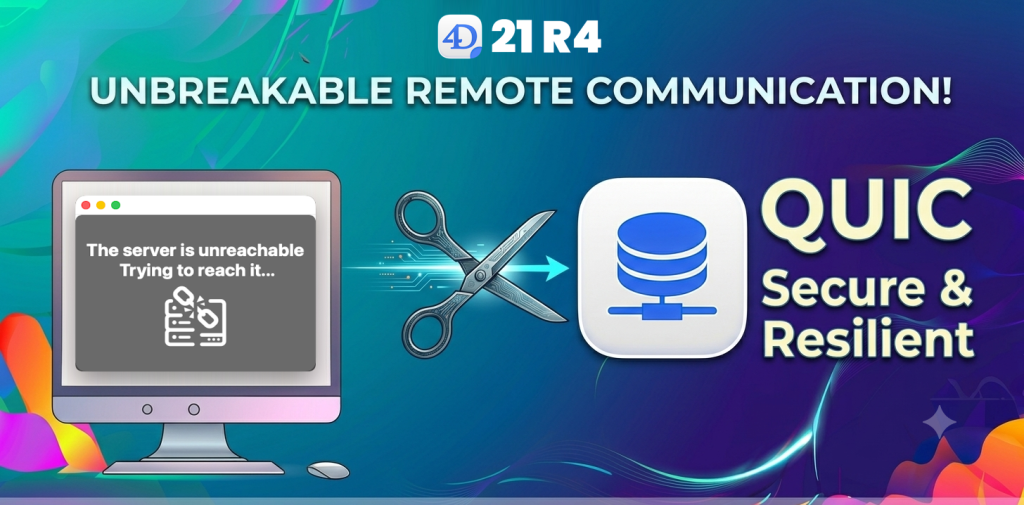
Network reliability has always been a priority in 4D’s client/server architecture. With 4D 21 R4, we’re taking it a step further: remote 4D application can now handle brief network interruptions seamlessly, without closing the user’s session or requiring any manual intervention.
Network disruptions are a fact of life in real-world deployments. Between a 4D client workstation and a 4D Server, there can be many network devices (switches, routers, firewalls, VPN gateways and so on) and any one of them can make the two peers temporarily unreachable to each other: a switch rebooting, a cable being unplugged and plugged back in, a transient routing issue somewhere along the path. These events typically last only a few minutes, but they can render the peers mutually unreachable all the same.
This feature is built on top of the QUIC transport layer that powers 4D’s client/server communication. QUIC is connectionless by nature (it runs over UDP), which means it can naturally tolerate periods of silence between peers without tearing down the session. When 4D Server detects that a remote 4D application has become unreachable, it no longer immediately closes the session. Instead, it keeps it alive and waits for communication to resume.
The duration of this holding window is controlled by a new database parameter: QUIC session timeout (selector 135). The default is 900 seconds (15 minutes), with a minimum of 60 seconds. You set it on the server side, and it applies to all new sessions opened from that point on.
// Read the current timeout value

$previousTimeout := Get database parameter(QUIC session timeout)

// Set a custom timeout window of 10 minutes

SET DATABASE PARAMETER(QUIC session timeout; 600)
Note: changing this value only affects new sessions. Existing sessions keep the value they were assigned when they were opened.
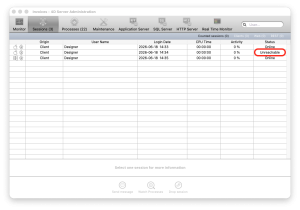
From the server side, as soon as the QUIC layer reports a remote 4D application as unreachable, the Server Administration Window shows the 4D client in an “Unreachable” state. The session is kept alive and a new unreachableSince attribute becomes available in the Process activity.sessions[] object corresponding to the unreachable 4D client, counting the seconds elapsed since last contact.
// On the server — inspect all remote sessions

$processActivity := Process activity(Sessions only)

For each ($session; $processActivity.sessions)

   If ($session.unreachableSince # Null)

      LOG EVENT(Into 4D diagnostic log;"Remote "+$session.systemUserName+\

            " unreachable for "+String($session.unreachableSince)+"s";\

            Information message)

   End if

End for each
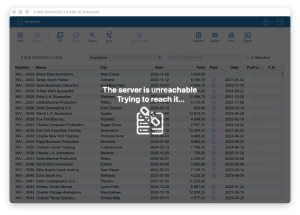
From the client side, the Session.info.unreachableSince attribute starts counting seconds since the last successful communication with the server. Only the windows that are actively communicating with the server switch to an “Unreachable” display: the interface is grayed out with a contextual message (also shown as a tooltip for smaller windows). Windows running local code are unaffected and remain fully usable. Users can keep working on offline parts of the application while the communication is being restored.
// On the remote — check how long the server has been unreachable

If (Session.info.unreachableSince # Null)

   ALERT("Server unreachable for " + String(Session.info.unreachableSince) + "s")

End if
If communication is restored before the QUIC session timeout expires, everything resumes transparently.
On the server side:
On the client side:
The user may not even notice anything happened.
If the peers remain unreachable to each other for longer than the defined timeout, the session is closed cleanly.
On the server side:
On the client side:
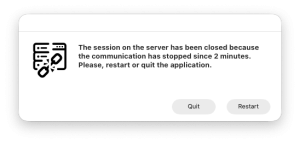
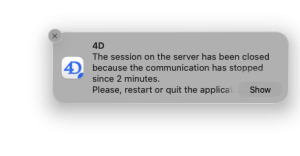
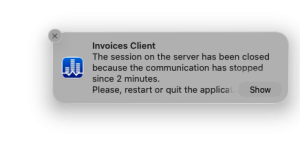
This ensures that even in the worst case, the experience is clean and informative.
The video below walks through the full picture. It starts with the legacy behavior using ServerNet, where any interruption immediately closes the session. It then demonstrates the new QUIC behavior across two scenarios:
No coding required. No configuration to deploy. Simply upgrade to 4D 21 R4 and this behavior is available out of the box, for every 4D client user.
This is not a minor improvement: it solves one of the most visible and longstanding pain points in 4D client/server deployments. Your customers have complained about it. It ends here.
And 4D goes further than most. While web applications typically give users no indication that they have lost server access (or require significant development effort to do so), 4D handles it transparently and immediately: affected windows are grayed out with a clear message, unaffected windows keep working, and everything restores automatically when communication resumes. If your solution is properly architected to separate local and server-dependent logic, your users can achieve a genuinely seamless online/offline experience with zero additional effort.
This is exactly why we invested in QUIC. For more context, read our post on why we moved away from the legacy network layer and watch the video demonstrating QUIC resilience versus other network layers. You can also learn more about the network layer switching feature introduced earlier.
This feature represents a great reason to upgrade to 4D 21 R4 and use QUIC!
Have questions or feedback about this feature? Drop a comment below or reach out on the 4D Forum.
Got a question, suggestion or just want to get in touch with the 4D bloggers? Drop us a line!
* Your privacy is very important to us. Please click here to view our Policy
Comments are not currently available for this post.