
Multi-Level Style Sheets in 4D Write Pro: Now With a Dedicated UI

July 27, 2026
4 min read
If you’ve ever spent time manually fixing a numbered list after adding or removing items, or tried to keep consistent heading styles across a long document, you know how fragile that process can be. One change cascades into hours of cleanup. 4D Write Pro’s multi-level style sheets, available starting with 4D 21 R3 and now with a dedicated UI in 4D 21 R4, solve this problem at its root.
In our previous post, we walked you through how to create and manage multi-level lists in 4D Write Pro using standard actions and 4D commands. Today, we’re excited to show you what’s new in 4D 21 R4: a fully dedicated user interface that puts all of that power directly at your fingertips, no code required.
Professional applications often need to generate or edit structured documents: legal contracts with numbered clauses, technical manuals with multi-level sections, reports with hierarchical outlines, etc. Keeping these documents consistent as content changes is a pain point for both developers and end users. Traditional approaches, such as manual formatting, fragile templates, or patchwork fixes, simply don’t scale.
4D Write Pro introduces multi-level style sheets: a powerful, structured approach to document formatting that lets you define a hierarchy of styles once, and have the document maintain itself automatically.
Automatic, self-healing numbering: Create a numbered list with multiple indentation levels (e.g., 1 → 1.1 → 1.1.1). When content is added or removed at any level, all numbering updates instantly, no manual intervention required.
Consistent hierarchical styles across entire documents: Define a root-level style and linked sub-level styles once, and apply them across hundreds of paragraphs.
Seamless export to PDF, HTML, and SVG: Your multi-level lists and styles are fully preserved when exporting to other formats.
Full interoperability with DOCX: Whether you import or export from a DOCX document, the hierarchy stays intact, no flattening, no lost indentation.
The 4D Write Pro interface component has been updated with new buttons and controls specifically designed to manage multi-level style sheets. Everything you previously did through commands or standard actions is now accessible through a clean, intuitive UI.
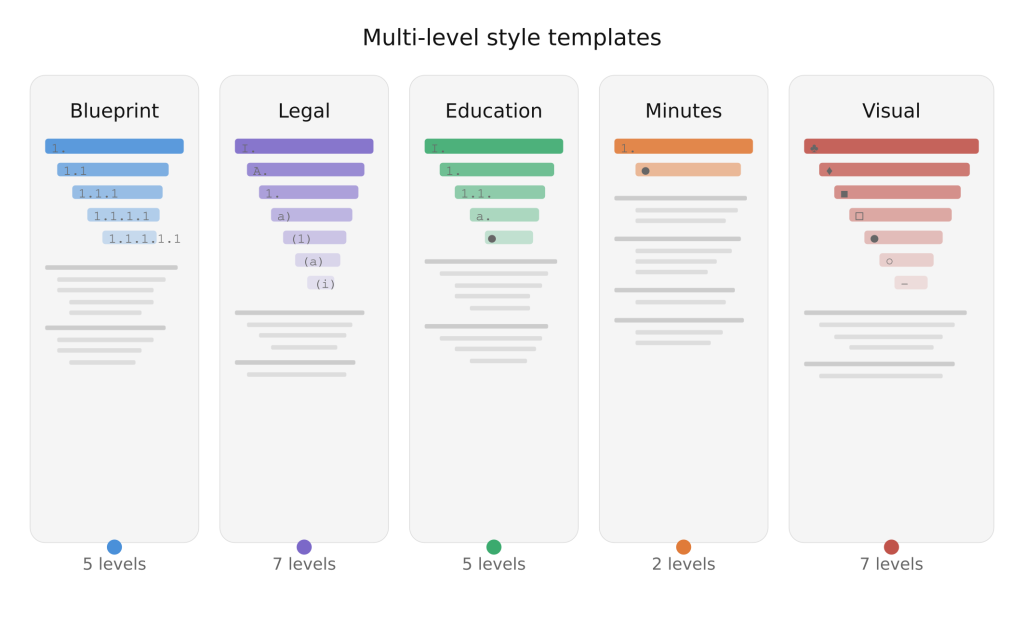
Don’t want to build from scratch? 4D Write Pro ships with pre-defined multi-level style sheet templates available directly from the style sheet dropdown, your users can be productive immediately.
Technical documentation and engineering specs: Use the Technical Blueprint template to apply decimal-style numbering (1, 1.1, 1.1.1…) that keeps titles, subtitles, and section hierarchies consistent and automatically renumbered as content evolves.
Contracts, compliance documents, and governance policies: Use the Legal & Governance template to structure clauses and sub-clauses with traditional legal notation (I., A., 1., a)…), so provisions can be added or removed without manually renumbering the entire document.
Training materials and course content: Use the Education Material template to organize chapters, lessons, and supporting points in a familiar outline format, making documents easier to navigate for both authors and readers.
Meeting minutes and action items: Use the Meeting Minutes template for lightweight, two-level structure: numbered agenda items with bulleted sub-points, keeping notes clean and easy to skim.
Client-facing reports and presentations: Use the Visual Hierarchy template when your 4D application programmatically generates structured output for export to DOCX or PDF, replacing numeric labels with symbolic markers (♣, ♦, ■…) for a polished, visually distinct layout.
The five pre-defined templates are defined in a JSON file located at: 4D Write Pro Interface/Resources/multiLevelStyles.json
Advanced users and developers can inspect this file to understand how the pre-defined templates are structured, and use it as a reference to build their own custom multi-level style definitions. To define your own multi-level stylesheets, simply override this file by placing a modified copy in your local Resources folder, inside a directory named 4D Write Pro Interface.
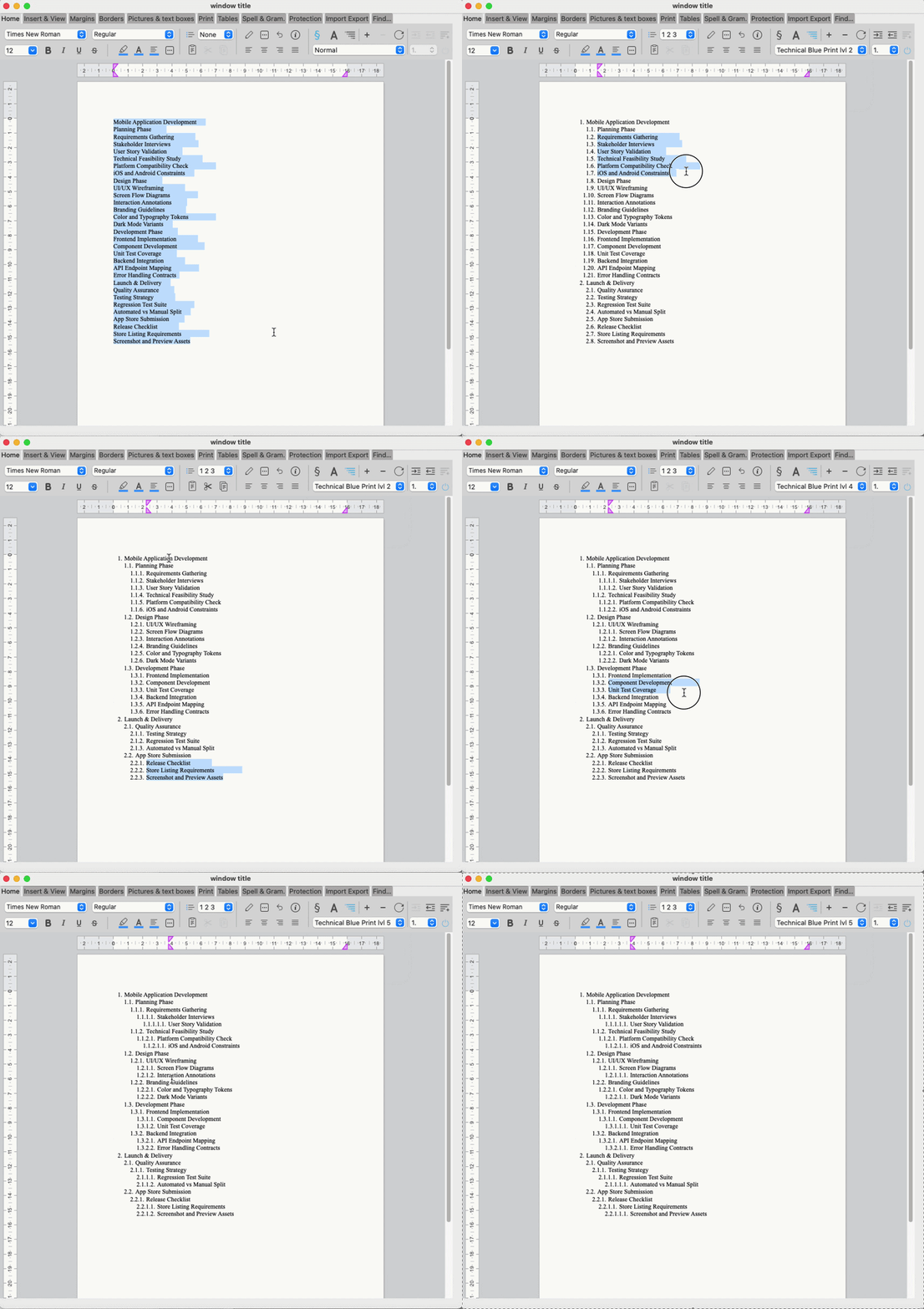
Rather than describe every click, here’s a short animation showing how to select and apply a template from the interface in just a few steps.
Multi-level style sheets are available now in 4D 21 R3 (programmatic API) and 4D 21 R4 (full UI). Check out the 4D Write Pro documentation,for the complete command reference, explore the pre-defined templates included with the interface component, and join the conversation on the 4D forum.
Got a question, suggestion or just want to get in touch with the 4D bloggers? Drop us a line!
* Your privacy is very important to us. Please click here to view our Policy
Comments are not currently available for this post.